Turn paper documents and saved images into a private, searchable digital archive with Insight Docs.
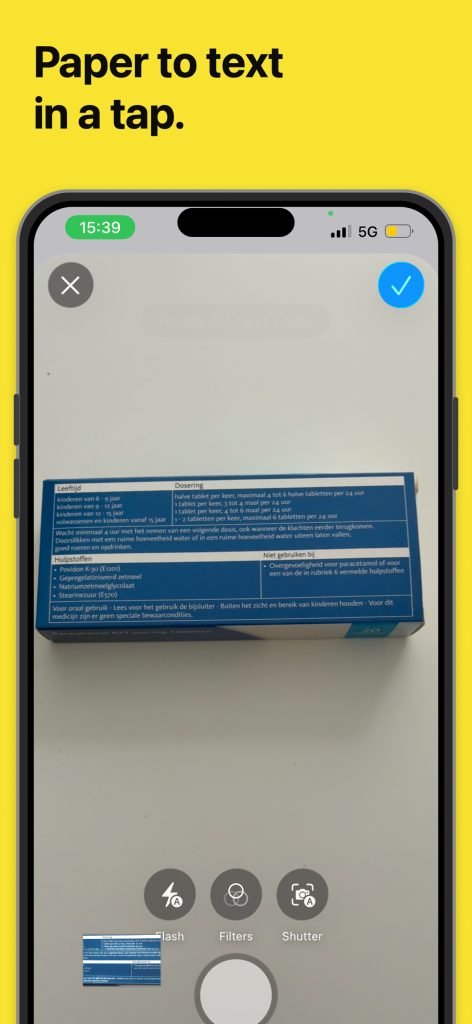
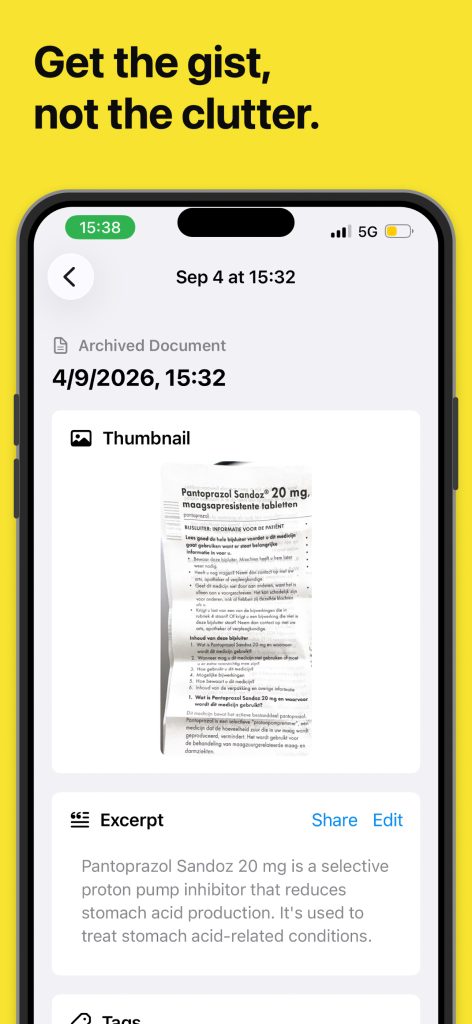
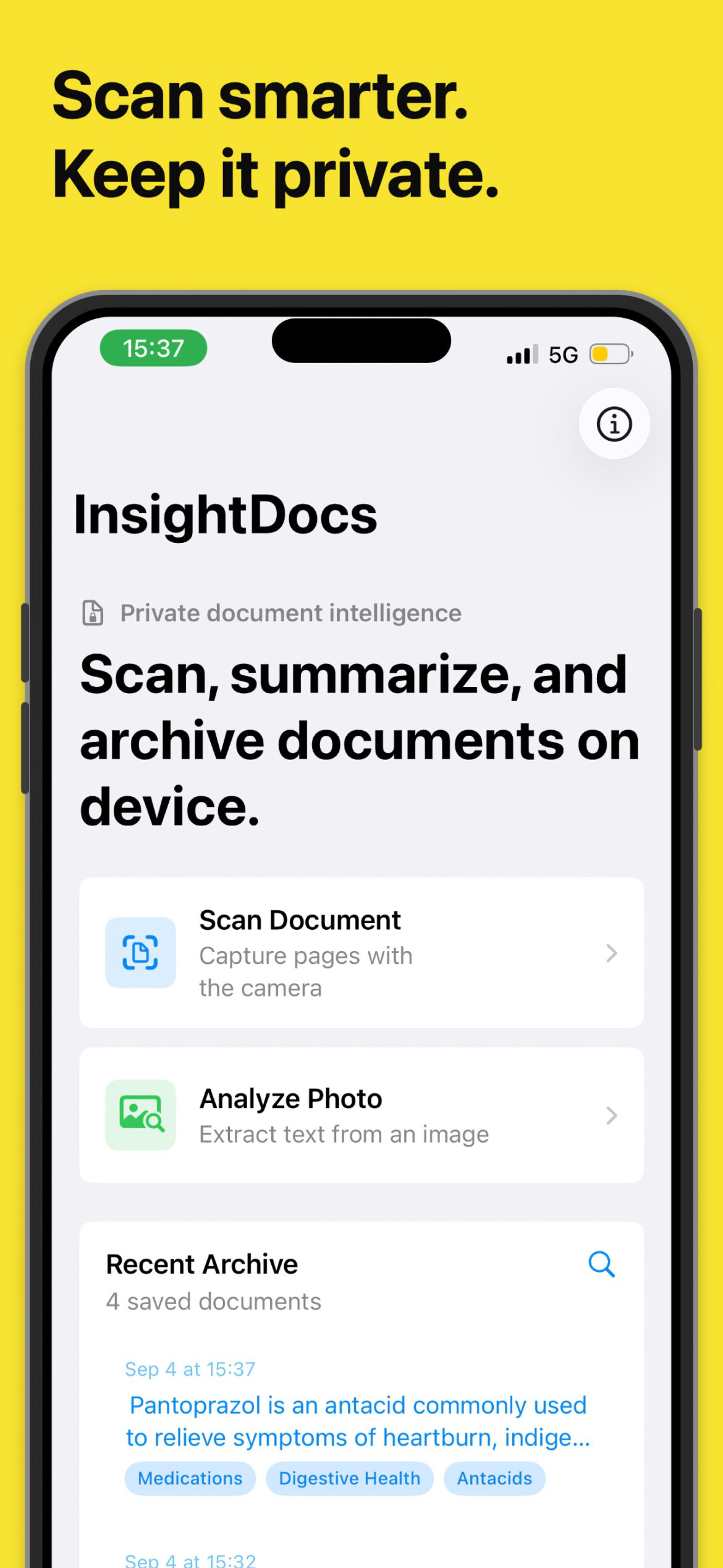
Scan a document with your camera or choose an image from your photo library. Insight Docs recognizes the text and uses on-device intelligence to create a concise excerpt and helpful tags—making important information easier to review, organize, and find later.
Review everything before saving. Correct recognized text, refine the generated excerpt, and choose whether to keep a thumbnail of the original document.
Key features:
• Scan paper documents with automatic page detection
• Import and analyze images from your photo library
• Crop pages for more focused text recognition
• Generate concise excerpts and useful tags on device
• Review and edit recognized text before archiving
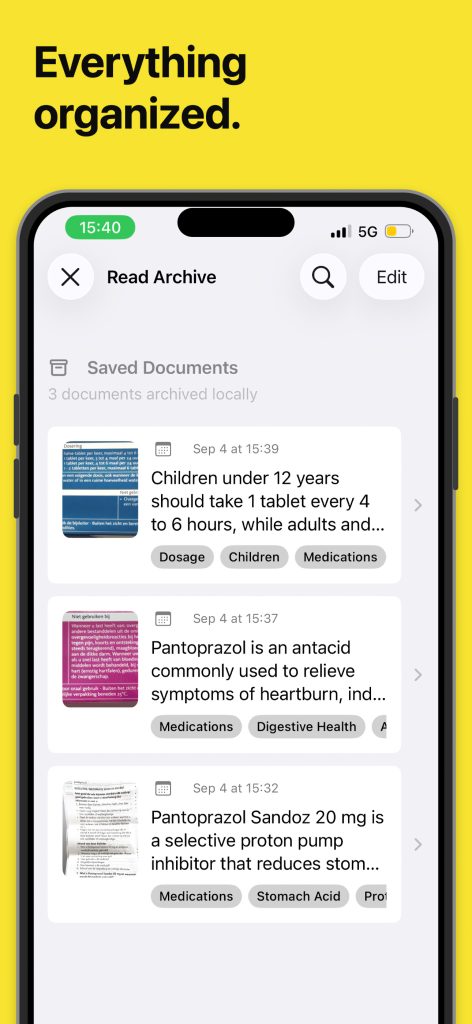
• Browse your documents in a clean, local archive
• Search saved documents by tags and excerpts
• Share text directly from archived documents
• Quickly open Scan, Archive, or Search with App Shortcuts
• VoiceOver and Dynamic Type support
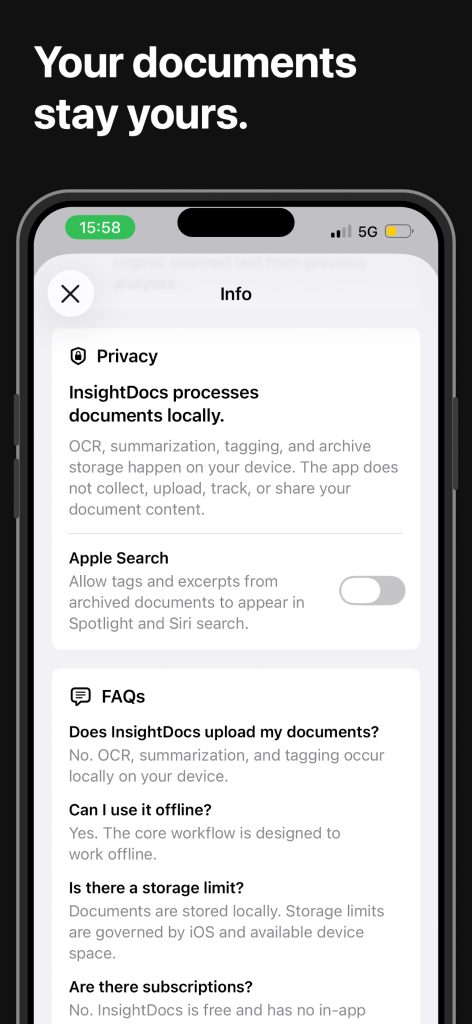
• Core features work offline
Private by design
Your documents stay yours. Text recognition, excerpt generation, tag generation, search, and archive storage all happen on your device. Insight Docs does not collect, upload, track, or share your document content.
Whether you are capturing letters, receipts, notes, handouts, or other everyday documents, Insight Docs helps you preserve the information that matters—without sending it to the cloud.
Some intelligence features require Apple Intelligence to be available and enabled on a compatible device.